This guide explains the third step for setting up new users for an aACE Discovery. It is intended for new system administrators.
An important part of learning about aACE is seeing how the automation and communication features add value to your workflows. Various notifications can be directed to the needed team members, based on team assignments.
In order for your Discovery team to see the kinds of notices that aACE will issue, each Discovery team member should be assigned to all the default aACE teams.
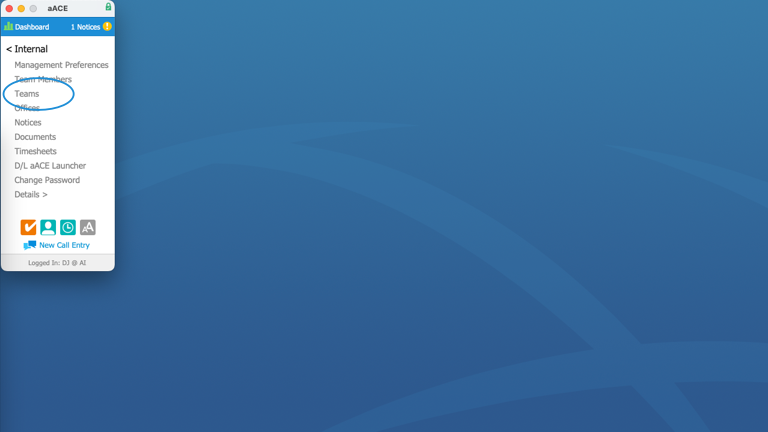
- From the Main Menu, click Internal.

- Then click Teams.
- At the Teams module list view, click Edit > Add Team Members to List.
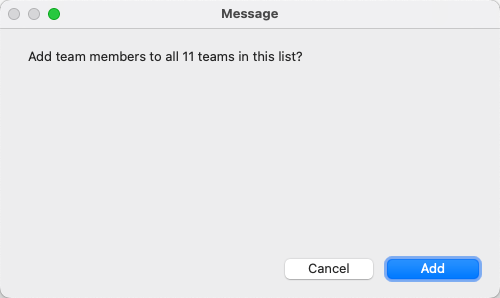
aACE displays a prompt for adding team members to all the currently listed teams.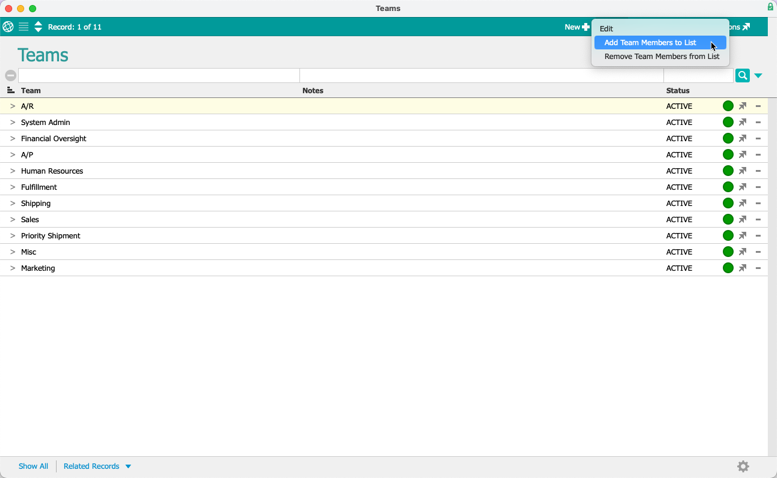
- Click Add.
- At the Team Members Selector, locate each team member on your Discovery team.
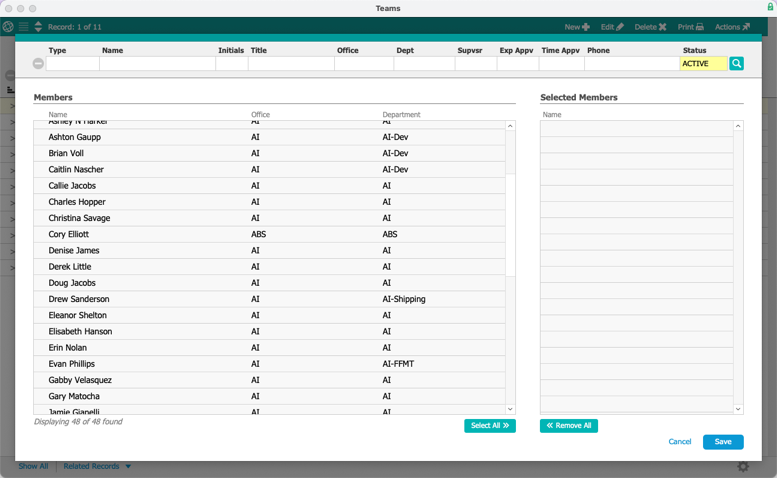
- Click each team member's name to populate the Selected Members list on the right.
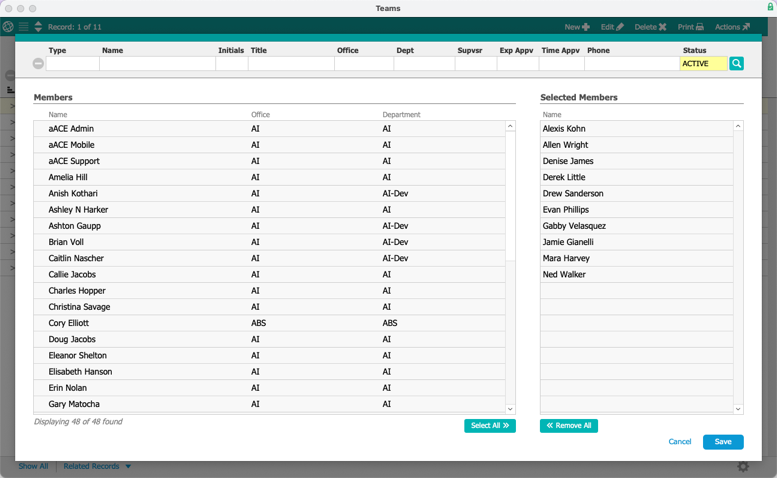
- Click Save.
aACE displays a message noting the update to the teams.

To confirm that each Discovery Team member was added to each team, click on the various teams.
Notifying New Users
After you have created team member records, assigned user groups, and assigned teams for all your Discovery team members, this task is almost complete.
Return to your Discovery Teamwork project. Use the instructions and email template there to notify your Discovery team about accessing aACE.
