This guide explains obtaining and preparing a spreadsheet you can use for importing data into aACE. It is intended for general users.
aACE provides import templates structured for each module that accepts data imports. Use these templates to help prepare your data for import.
Reviewing the Module Data Requirements
Before accessing the import template, evaluate which data fields you want to import to the aACE module. For example, if you are importing company records, make sure you have the essential data ready including company name, address, phone numbers, and web address.
Most aACE modules require certain data points. To identify a module's required fields, create a new record in that module and note which fields are highlighted in pink. Your source file must contain data for the required fields, and that data must be valid. For example, records in the Line Item Codes module require a Line Item Code Type. If required data is not present on the import spreadsheet, the records will not import.
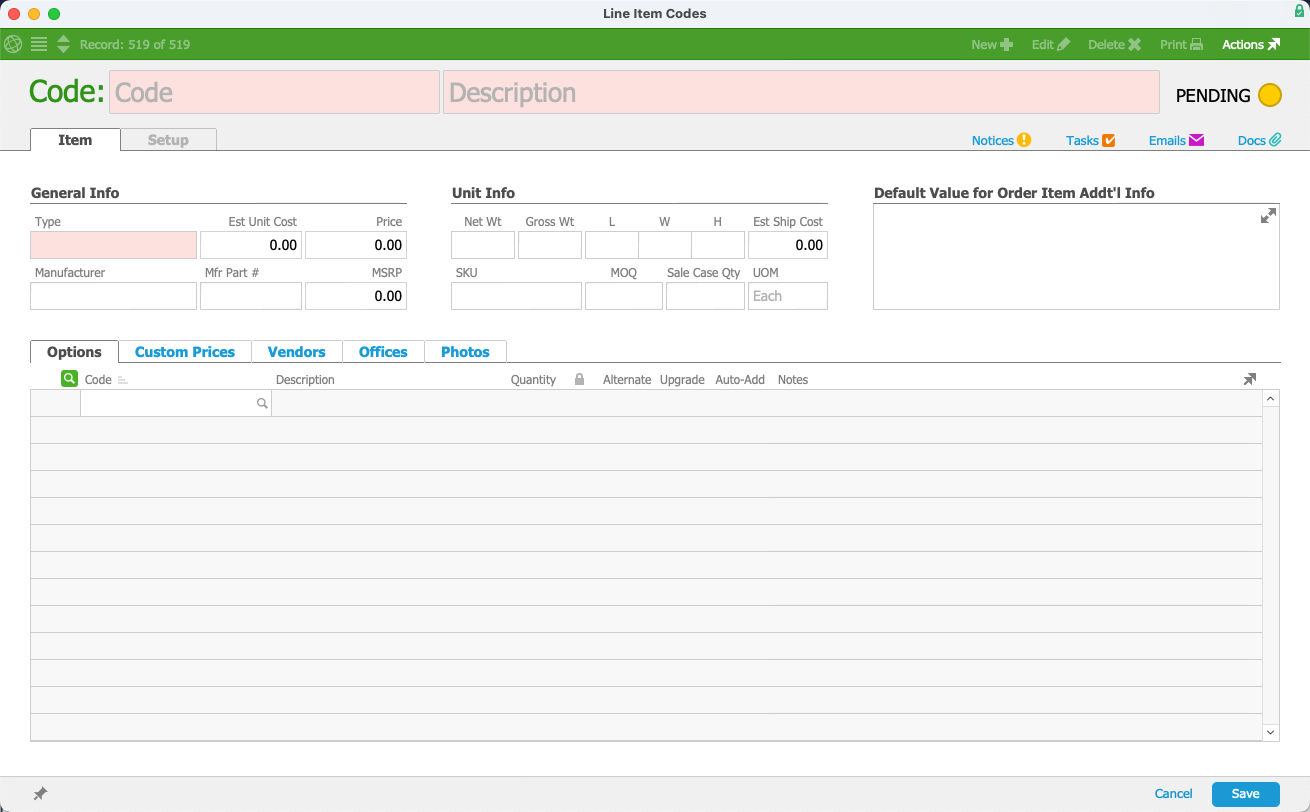
Other fields may be optional. If this data is not present on the import spreadsheet, aACE leaves the fields empty or automatically enters a default value.
Downloading the Import Template
Downloading an import template is standard across the aACE modules.
- From the Main Menu, go to the module you need to import data for.
- Select Actions > Import.
- Select Step 1.
aACE downloads the module-specific import spreadsheet to your workstation desktop.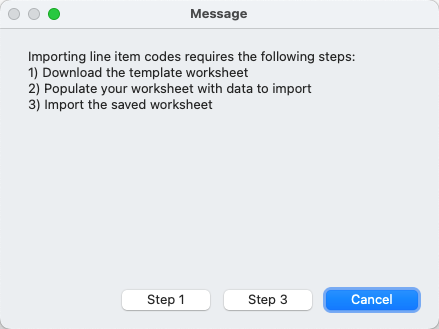
Populating the Import Template
Ensure you save the spreadsheet file format as an Excel or FileMaker spreadsheet. This helps ensure the data mapping will work correctly when you import the records.
You can populate an import spreadsheet in two ways:
- Copy your data — Paste your information into the aACE template columns. Use this method when your data is still in another software system or when the spreadsheet of your data has different columns from the spreadsheet template.
- Copy the template column names — Paste the column titles from the aACE template into your source file. Use this method when your source file already includes the data columns but not the correct column names.
Data in Other File Formats
Your data may initially be available only in other file formats:
- XML-structured files — Convert these to an Excel or FileMaker spreadsheet.
- Tab-delimited files — You can import data in this format, but it will require a longer process of manually mapping the data to the import fields.
Rounding Logic for Import Updates
Some spreadsheet editing software will not round values by default. If you don't include a rounding instruction in the calculation, your data in aACE may have more decimals than you require. This is applicable when using the import process to update line item code values. For example, if you need to update all line item code costs by 5%, add a new column called Rate Value Update, and enter a calculation such as Round(Rate Value*1.05,2).
